
📺 How to Set Up IPTV on VU Player Pro (Step-by-Step Guide + Video Tutorial)
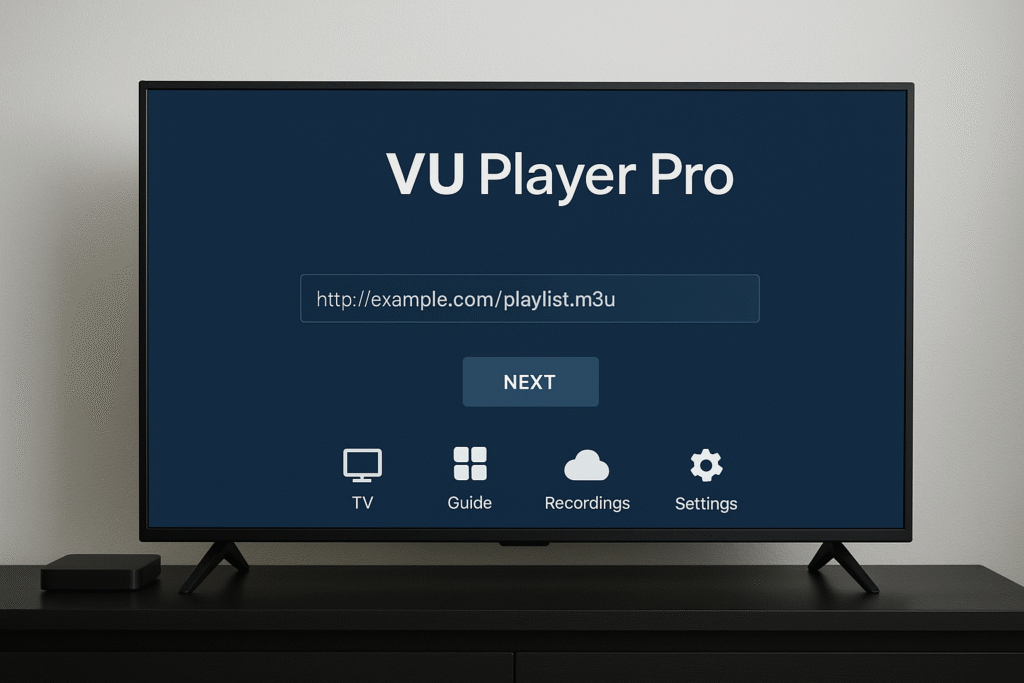
If you want a smooth and reliable way to watch IPTV on your Smart TV or Android device, VU Player Pro is one of the best IPTV players available. It offers a modern interface, supports M3U links and Xtream Codes, and is compatible with Android TV, FireStick, and Smart TVs.
In this complete guide, you’ll learn how to install and set up IPTV on VU Player Pro — plus a video tutorial at the end.
✅ What You Need Before You Start
Before starting the setup, make sure you have:
- A Smart TV, Android TV Box, or FireStick
- The VU Player Pro app installed
- A valid IPTV subscription (for example from iptvsubscription1.store)
- Your M3U link or Xtream Codes (provided by your IPTV provider)
🧩 Step 1: Install VU Player Pro
- Go to your device’s App Store (Google Play Store, Samsung Store, or Amazon App Store).
- Search for “VU Player Pro.”
- Click Install and wait until the app finishes downloading.
- Open VU Player Pro once installed.
💡 Note: VU Player Pro is only an IPTV player — you still need a subscription from a provider like iptvsubscription1.store.
🔑 Step 2: Get Your Device ID and Key
When you open the app for the first time, you’ll see:
- Device ID
- Device Key
Write these down — you’ll use them to upload your IPTV playlist online.
🌐 Step 3: Upload Your IPTV Playlist
- On your phone or computer, open the VU Player Pro activation website:
👉 https://vuplayer.pro/ - Enter your Device ID and Device Key.
- Choose how you want to add your IPTV:
- M3U URL — paste your IPTV playlist link (from iptvsubscription1.store
- Xtream Codes Login — enter Username, Password, and Server URL.
- Click Upload / Save.
- Restart the VU Player Pro app on your TV — your channels should now load automatically.
📱 Step 4: Start Watching
Once your playlist is uploaded:
- Channels and categories (Movies, Sports, News, etc.) will appear.
- You can now enjoy HD and 4K IPTV streaming with smooth playback.
- Add channels to Favorites for easy access.
⚙️ Optional Settings
You can personalize your app by:
- Adding EPG (TV Guide).
- Changing the theme or layout.
- Setting up parental control for kids.
- Enabling multi-screen mode (if supported).
🎥 Video Tutorial: How to Set Up IPTV on VU Player Pro
👉 Watch the full step-by-step video guide here:
Click here to watch the setup video on YouTube
💡 Tips for the Best Experience
- Use a stable internet connection (minimum 20 Mbps for HD).
- Buy your IPTV from a trusted provider like iptvsubscription1.store
- Use a VPN for privacy and to avoid geo-restrictions.
- Keep the app updated for new features and improved performance.
🏁 Conclusion
Setting up IPTV on VU Player Pro is quick and easy. In just a few steps, you can stream live channels, movies, and sports from all over the world — in HD or 4K quality.
Get your IPTV subscription from iptvsubscription1.store and start enjoying unlimited entertainment today!